Setting Up Your Email Inbox: IMAP or POP3 – Clearly Explained
IMAP or POP3, which port, which encryption? This guide helps you correctly set up your inbox on PC, smartphone, and tablet.
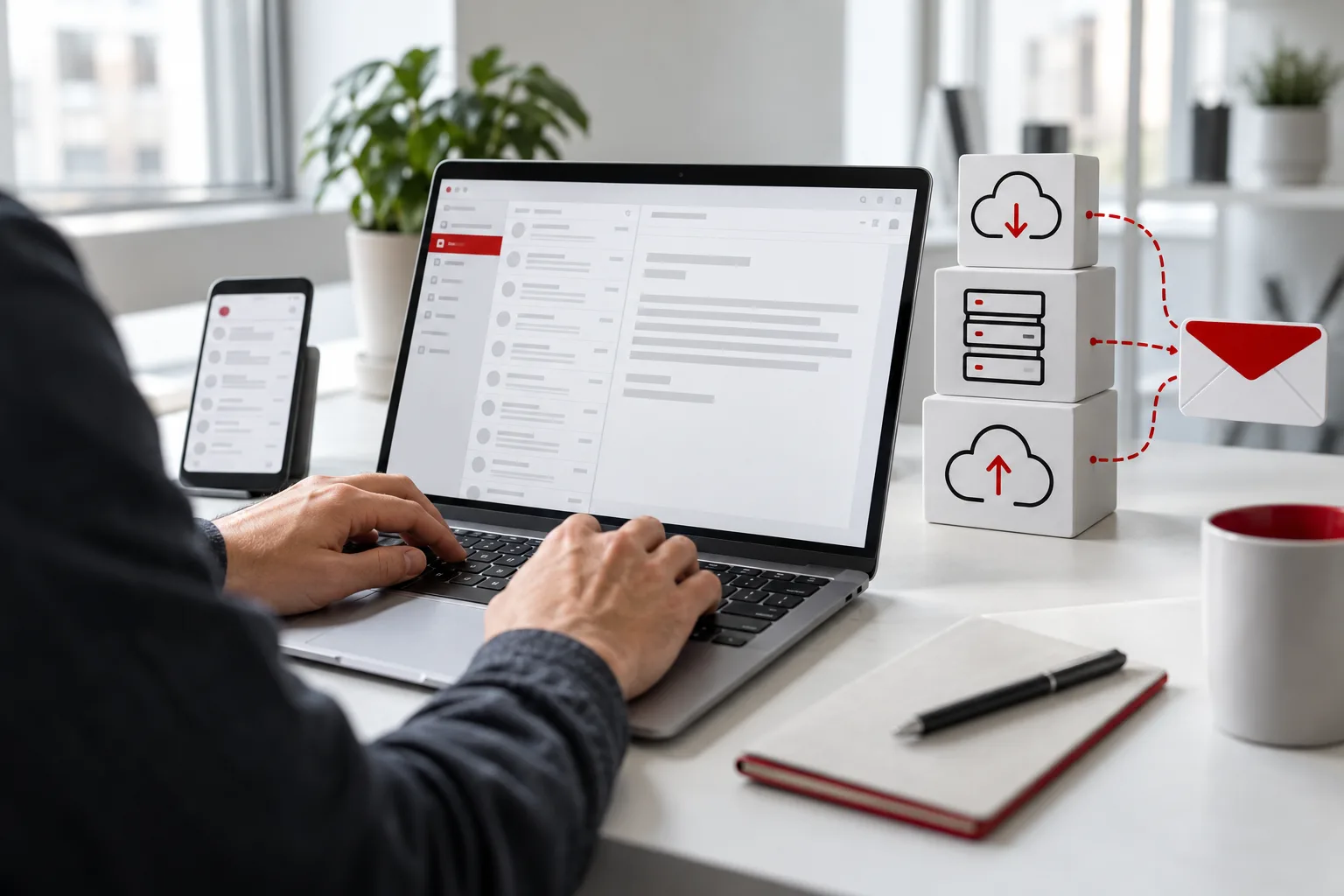
IMAP or POP3 – In short: Use IMAP to access your emails on multiple devices – your emails stay on the server and stay synchronized everywhere. POP3 downloads emails to a single device. For sending, always use SMTP with authentication and encryption.
- IMAP: synchronized on all devices – the current standard.
- POP3: emails stored locally, for single workstations.
- SMTP: sending, always with username and password.
- Always use encrypted connections (SSL/TLS).
IMAP or POP3 – what’s the difference?
| Feature | IMAP | POP3 |
|---|---|---|
| Storage location | on the server | on the device |
| Multiple devices | yes, fully synchronized | limited support |
| Folders and read status | same everywhere | local only |
| Server storage | used | usually emptied |
| Data backup | server plus your own backup | only your local backup |
Typical settings
You can find the exact server names in the MYPOINT admin panel or your access data. Common ports are:
| Service | Port | Encryption |
|---|---|---|
| IMAP | 993 | SSL/TLS |
| POP3 | 995 | SSL/TLS |
| SMTP (sending) | 465 or 587 | SSL/TLS or STARTTLS |
The username is usually your full email address. Enable "Authentication required" on the outgoing mail server.
Setup on common devices
iPhone and iPad
Settings → Mail → Accounts → Add Account → Other → Mail Account. Enter your name, address, and password, then select IMAP and enter the incoming and outgoing server details.
Android
Add a new account in the email app, choose "Manual Setup" or "Other," select IMAP account type, and enter the server details.
Outlook and Apple Mail on computer
Add a new account, select IMAP in advanced or manual setup, and use the data from the table. Automatic detection may not always work – manual entry helps.
Common issues and solutions
- Can receive but not send: Enable SMTP authentication and check the correct port.
- Certificate warning: Use the server name exactly as shown in the admin panel.
- Sent emails missing on phone: Assign the "Sent" folder on the server in IMAP settings.
- Mailbox full: Archive large attachments or choose a larger hosting package.
- Emails go to recipient’s spam folder: Check SPF, DKIM, and DMARC (guide).
Backing up and archiving emails
Even with IMAP, important emails should be backed up separately. Accidentally deleted folders disappear from all devices simultaneously. Many email programs offer export or archive functions; companies should implement regulated archiving.
Keep your mailboxes lean: locally save large attachments if needed and remove them from the mailbox, delete old newsletters, and keep folder structures simple. This keeps search and synchronization fast and extends your hosting package’s storage capacity.
Conclusion
With IMAP and encrypted connections, your emails stay consistent across all devices. If you have any issues, we provide phone support – including help setting up your own email address. Contact us.